
Ways to Automate WordPress: A Practical Automation Checklist
Use this WordPress automation checklist to identify safe, high-value improvements across content, SEO, media, forms, backups, reporting, and editorial operations.
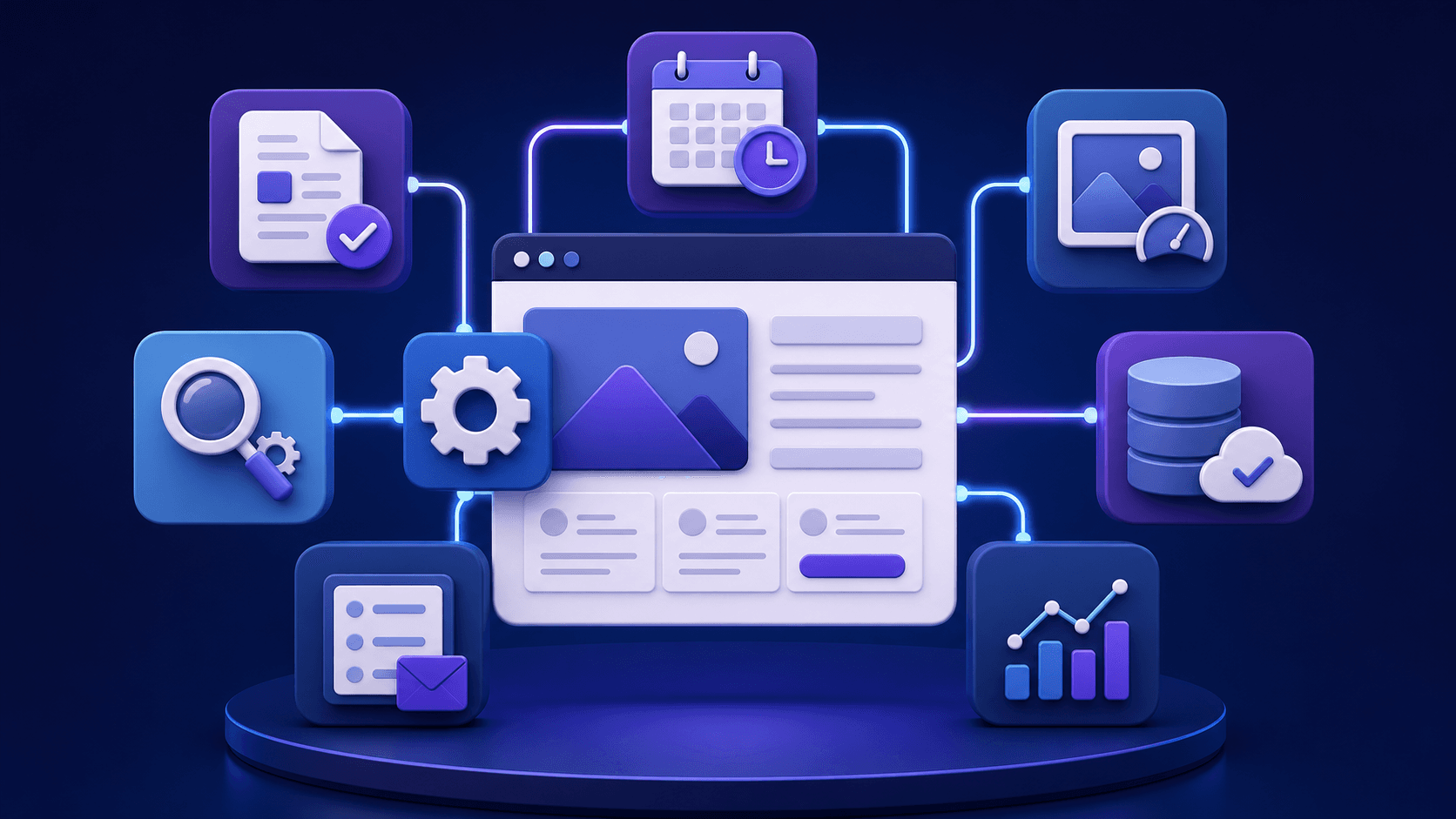
WordPress automation is most valuable when it removes repetitive work and makes human decisions easier. Start with low-risk tasks, document the result, and only then automate steps that can affect what visitors see.
Step-by-step guide
1. List repetitive work for one week
Write down tasks that recur: creating drafts, resizing images, adding metadata, sending form notifications, checking backups, or preparing reports. Do not automate a task until you understand its inputs and exceptions.
2. Rank each task by risk and value
High-value, low-risk tasks—such as status notifications and draft creation—are good starting points. Site-wide changes, direct publishing, and user-account actions need more safeguards.
3. Automate one narrow outcome
For example: turn an approved content brief into a WordPress draft with a title, category, and editorial checklist. Test that one outcome before adding images, links, social posts, and publishing to the same workflow.
4. Add an owner and an escape hatch
Every workflow needs a person who receives failures and a fast way to pause it. A documented stop button is more important than an elaborate automation diagram.
5. Measure before expanding
Record time saved, errors prevented, review time, and impact on readers. Remove a workflow that adds hidden work or produces pages that need more repair than manual creation.
Content and editorial automation
Create topic briefs, generate outlines, make draft posts, assign editors, add pre-publish checklists, and notify reviewers. Keep facts, final positioning, and publish decisions in the editorial workflow.
SEO and media automation
Automate image compression, redirect monitoring, broken-link alerts, XML sitemap checks, and reporting. Review generated titles and descriptions because they represent the page in search results.
Operations automation
Use automation for backup notifications, form routing, uptime alerts, comment moderation queues, lead follow-up, and analytics summaries. These tasks are usually safer than changing live content without a review step; use the same risk assessment before automating customer or order-facing actions.
Related Clustova resources
For a product-led implementation, start with the WordPress integration guide, then review our AI blog automation overview and the MCP server documentation. These guides are designed to work as a cluster: choose a workflow, protect the connection, schedule reviewed drafts, and measure the result.
- How to Automate WordPress Posts with AI: 3 Complete Workflows
- How to Auto-Publish AI Articles to WordPress Using the REST API
- WordPress AI Content Workflow: From Keyword to Published Article
- How to Schedule AI-Generated WordPress Posts Safely
- How to Secure WordPress When Using AI Automation
Frequently asked questions
What WordPress tasks are safest to automate first?
Start with notifications, reports, draft creation, image compression, and internal assignment. They save time while leaving public-facing decisions with a person.
Can I automate WordPress SEO?
You can automate checks and data collection, but titles, descriptions, internal links, and on-page claims still benefit from editorial review. Treat automation as a quality aid rather than a substitute for judgment.